How To Reset MyQ Garage Door Opener
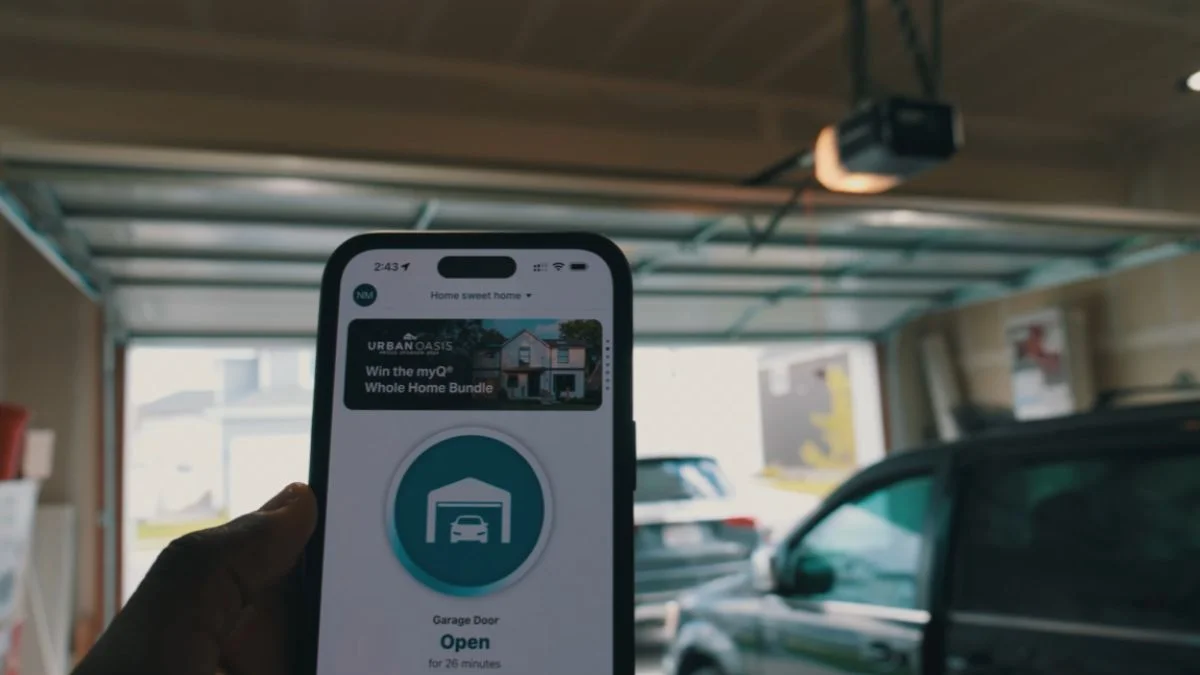
Resetting a myQ garage door opener — whether it’s a Chamberlain or LiftMaster model — takes under two minutes once you know the exact button sequence and LED signals to look for.
The problem is that most homeowners hit a wall when their myQ app stops responding, a Wi-Fi change breaks the connection, or they move into a home where the previous owner’s account is still linked to the device.
This guide walks you through every reset method — from a simple Wi-Fi reconnection to a full factory reset — so you leave knowing exactly which steps apply to your situation, what the LED colors mean, and how to reclaim ownership of a device registered to someone else.
Which Reset Method Fits Your Situation
Not every myQ problem needs a factory reset. Using the wrong method wastes time and forces you to re-pair every device from scratch.
There are 3 distinct reset types, and your situation determines which one applies.
App Soft Reset (Connectivity Troubleshooting)
Use this when your myQ device shows as offline in the app but the hardware itself is working. This fixes most Wi-Fi garage door reset issues — dropped connections after a router change, firmware update glitches, or a temporary myQ server outage. No data is lost. You simply remove the device from your myQ account inside device settings and re-add it.
Hub Reset (Wi-Fi or Account Issues)
The myQ Smart Garage Hub has its own reset process separate from the motor unit. Press and hold the reset button on the hub until the LED indicator light changes — typically from solid to blinking. This clears stored Wi-Fi credentials and myQ account disconnection data without touching the motor unit itself. Use this when the hub is the problem, not the opener.
Motor Unit LEARN Button Reset (Full Factory Reset)
This is the deepest reset available. Holding the LEARN button on a Chamberlain or LiftMaster motor unit for 6-8 seconds erases all paired remotes, keypads, and accessories. Use this for a true factory reset myQ garage door situation — specifically when you’ve moved into a home where the system is still tied to a previous owner’s account and a myQ device ownership transfer is needed.
| Situation | Reset Type Needed |
|---|---|
| App shows device offline | App soft reset |
| Wi-Fi network changed | Hub reset |
| Inherited from previous owner | LEARN button factory reset |
| Forgot myQ login credentials | App soft reset + password recovery |
| Remote won’t pair | LEARN button reset |
Factory Reset via Physical Button
Physical resets are the most reliable option when app access is unavailable or when the device is still linked to a previous owner’s myQ account.
MyQ Hub Reset — Physical Method
The reset button on a myQ Smart Garage Hub is recessed — you’ll need a paperclip or pin to reach it. Press and hold for 10-15 seconds. The LED indicator light will shift from solid to rapid blinking, then go dark briefly before restarting. That sequence confirms the hub reset is complete. All stored Wi-Fi credentials and myQ account disconnection data are wiped. Wait 2-3 minutes for the full reboot cycle before attempting to reconnect.
Motor Unit LEARN Button Reset
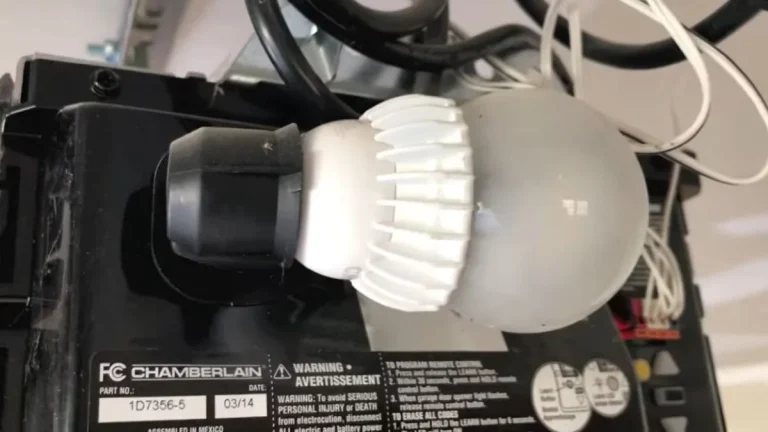
The LEARN button sits on the motor unit itself — on most Chamberlain and LiftMaster models, it’s on the back or side panel, near the antenna wire. The button color varies by model (orange, yellow, green, or purple), but the process is the same: press and hold for 6-8 seconds until the LED indicator light beside it goes out. That signals all paired remotes, keypads, and accessories have been erased. Note that this motor unit reset does not clear Wi-Fi settings or hub connections — it only wipes remote access codes.
Reset via MyQ Mobile App
Open the myQ app, navigate to Settings, select Device Settings, then tap Factory Reset if the option appears. This method requires an active internet connection and a working app login. It’s the gentlest reset path — some non-critical configuration data may survive — but it won’t help if the device is offline or locked to a previous owner’s account.
Resetting After Ownership Transfer
Moving into a home with an existing myQ system is where most people hit a hard wall. A factory reset myQ garage door procedure alone won’t free a device that’s still registered to a previous owner’s Chamberlain account.
Why Standard Reset Isn’t Enough
The LEARN button reset erases remote pairings, but it does not break the cloud-level link between the device and the previous owner’s myQ account. That account tie blocks any new myQ garage door reconnect attempt. Chamberlain’s system is designed this way intentionally — it’s a security feature to prevent unauthorized account takeovers. The result is that even after a full physical reset, the device will re-associate with the old account the moment it reconnects to Wi-Fi.
Ownership Transfer Process
Contact Chamberlain support directly at support.chamberlaingroup.com. You’ll need to provide proof of ownership — a settlement statement, property deed, or purchase receipt — along with the device serial number. If you have the previous owner’s email address, include it, as it significantly speeds up the myQ device ownership transfer. Chamberlain’s support team will release the device from the prior account, typically within 24-48 hours. Once you receive confirmation, perform a full factory reset and pair the device to your new myQ account.
What Information to Gather Before Contacting Support
Collect these 3 items before reaching out:
- Device serial number — printed on a sticker on the hub or motor unit
- Proof of ownership — property deed, closing documents, or purchase receipt
- Previous owner details — name or email address if available (optional but accelerates the process)
Reconnecting and Testing Post-Reset
A successful reset means nothing if the reconnection is done incorrectly. Follow these steps in order to avoid landing back at a myQ device offline reset situation.
Step 1: Add the Device to the MyQ App
Open the myQ app and tap the “+” icon to begin a new device discovery scan. Select your device type — Smart Garage Hub, Chamberlain opener, or LiftMaster unit — and follow the on-screen prompts. The app will search for the reset device broadcasting its default setup signal. If the hub doesn’t appear, confirm it completed its reboot cycle (wait the full 2-3 minutes post-reset before scanning).
Step 2: Connect to Your Home Wi-Fi
The myQ app reset procedure will prompt you to select a Wi-Fi network during setup. Always choose your 2.4GHz band, not 5GHz. MyQ hubs and most Chamberlain and LiftMaster openers do not support 5GHz connections, and attempting it is one of the most common reasons the myQ Wi-Fi garage door reset appears to fail.
Step 3: Test All Door Functions
Once connected, run a full function test before considering setup complete:
- Open command from the app
- Close command from the app
- Stop command mid-cycle
- Physical wall button operation
- Remote or keypad operation if previously paired
Step 4: Confirm LED Status
Check the LED indicator lights on both the hub and motor unit. On most myQ models, a solid green LED confirms a live, stable connection. A blinking or amber LED signals a connectivity issue that needs troubleshooting before the setup is complete.
If a reset doesn’t fix it and the opener is humming instead of moving, here’s what that usually means.
Troubleshooting When Reset Stalls
Most reset failures trace back to one of 4 specific causes. Match your symptom below to fix it without guesswork.
LED Not Blinking After Button Press
If the LED indicator lights show no response after holding the reset button, the hub isn’t receiving stable power. Unplug the hub completely, wait 30 seconds, and plug it back in. Confirm the outlet is live by testing it with another device. Once power is confirmed, attempt the hub reset again. A hub that shows no LED activity at all likely has a hardware fault — contact Chamberlain support.
Cannot Locate Wi-Fi Network During Reconnection
If the myQ app can’t find your network during the myQ Wi-Fi garage door reset process, the hub antenna is either blocked or too far from the router. Move the hub within 10 feet of your router temporarily to complete setup, then reposition it. Also confirm you’re connecting to a 2.4GHz network — the hub will not display 5GHz networks at all, which can look like a range problem when it isn’t.
Device Stays Offline After Reconnect Attempt
A pending firmware update can hold a device in a myQ device offline reset loop for up to 5 minutes after reconnection. Don’t interrupt it. Leave the hub powered and connected, wait 5 full minutes, then check the app again. Force-close and reopen the myQ app before assuming the connection failed.
LEARN Button Press Has No Effect
The LEARN button on a Chamberlain or LiftMaster motor unit only responds when the unit is powered. Check that the garage outlet is live and the motor unit’s power indicator is on. A tripped GFCI outlet or a blown fuse in the garage circuit is the most common cause — reset the outlet or check the breaker before assuming motor unit failure.
Frequently Asked Questions
How Long Does a MyQ Factory Reset Take?
The physical reset itself takes under 60 seconds — hold the button for 10-15 seconds, then allow 2-3 minutes for the reboot cycle to complete. Add another 5-10 minutes if a firmware update triggers automatically after reconnection.
Will I Lose My Access History If I Factory Reset?
Yes. A full factory reset clears all stored access logs, paired remotes, keypads, and myQ account disconnection data tied to that device. If access history matters — for a rental property or shared household — export or screenshot your logs from the myQ app before performing the reset.
Can I Reset MyQ Without the Original Remote?
Yes. The original remote is not required for any reset method. The hub reset uses a physical recessed button on the hub itself, and the LEARN button reset on a Chamberlain or LiftMaster motor unit is performed directly on the motor — no remote needed. You only need the remote if you want to re-pair it after the reset is complete.
Does a Factory Reset Fix a Hacked or Compromised MyQ Account?
A device-level factory reset does not secure a compromised myQ account. Change your myQ password immediately through the app or at myq.com, enable two-factor authentication, then perform the factory reset to clear any unauthorized device pairings.
Getting Back Online and Staying Secure
The most common reason homeowners need a second reset is a forgotten myQ password or an unrecognized device left paired to the account — both are preventable. Open the myQ app today, review every paired device under Device Settings, remove anything unfamiliar, and update your password to something unique.
Enable two-factor authentication at myq.com to make sure no future ownership dispute or unauthorized access forces you through this process again.